SSH#
Lagoon allows you to connect to your running containers via SSH. The containers themselves don't actually have an SSH server installed, but instead you connect via SSH to Lagoon, which then itself creates a remote shell connection via the Kubernetes API for you.
Ensure you are set up for SSH access#
Generating an SSH Key#
It is recommended to generate a separate SSH key for each device as opposed to sharing the same key between multiple computers. Instructions for generating an SSH key on various systems can be found below:
OSX (Mac)#
Linux (Ubuntu)#
Windows#
SSH Agent#
OSX (Mac)#
OSX does not have its SSH agent configured to load configured SSH keys at startup, which can cause some headaches. You can find a handy guide to configuring this capability here: https://www.backarapper.com/add-ssh-keys-to-ssh-agent-on-startup-in-macos/
Linux#
Linux distributions vary in how they use the ssh-agent . You can find a general guide here: https://www.ssh.com/academy/ssh/agent
Windows#
SSH key support in Windows has improved markedly as of recently, and is now supported natively. A handy guide to configuring the Windows 10 SSH agent can be found here: https://richardballard.co.uk/ssh-keys-on-windows-10/
Uploading SSH Keys#
Via the UI#
You can upload your SSH key(s) through the UI. Log in as you normally would.
In the upper right hand corner, click on Settings:
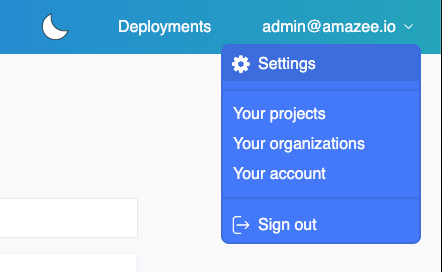
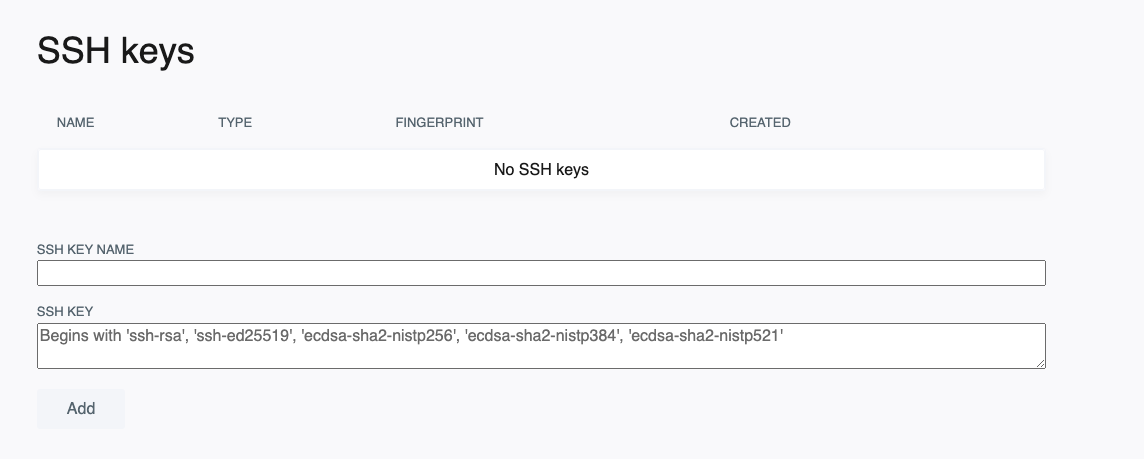
You will then see a page where you can upload your SSH key(s), and it will show any uploaded keys. Paste your key into the text box, give it a name, and click "Add." That's it! Add additional keys as needed.
Via Command Line#
A general example of using the Lagoon API via GraphQL to add an SSH key to a user can be found here
SSH into a pod#
The recommended way to SSH into a pod is to use the Lagoon CLI.
The lagoon ssh command automatically queries the Lagoon API to determine the optimal SSH endpoint to connect to, and takes care of setting the relevant SSH options.
You can find more details in the Lagoon CLI SSH documentation.
Pod/Service, Container Definition#
By default the remote shell will try to connect you to the first container in the pod of the service type cli.
If you would like to connect to another service you can specify it using the -s argument to the Lagoon CLI command.
If your pod/service contains multiple containers, Lagoon will connect you to the first defined container. You can also define the specific container to connect to via the -c argument:
lagoon ssh -p [PROJECT-NAME] -e [ENVIRONMENT-NAME] -s [SERVICE-NAME] -c [CONTAINER-NAME]
For example, to connect to the php container within the nginx pod:
Copying files and advanced SSH usage#
For advanced use cases like copying files using tools such as scp or rsync where the Lagoon CLI's capabilities may not directly apply, you will need the underlying raw ssh connection details.
You can get the required ssh command and connection string by adding the --conn-string flag to your lagoon ssh command:
This command should return a connection string, for example: ssh -t -p 32222 projectname-environment@ssh.lagoon.example.com
You can then use these details with the usual SSH-compatible tools.
Note
When you run the ssh client command with just a USER@HOST argument, it will assume that you want an interactive session and allocate a pty.
This gives you a regular shell environment where you can enter commands at a prompt, send interrupts using ^C etc.
However, when you provide an argument to the ssh client command, it assumes that you want a non-interactive session (e.g. just run a command and return) and will not allocate a pty.
So when providing an argument such as service=[SERVICE-NAME] to an ssh command that you expect to give you an interactive shell, you need to tell the ssh client to not "auto-detect" if it needs a pty and just allocate one anyway using the -t flag.
scp#
rsync#
rsync --rsh='ssh -p [PORT]' [local_path] [project_name]-[environment_name]@[HOST]:[remote_path]
tar#
ssh -p [PORT] [project_name]-[environment_name]@[HOST] tar -zcf - [remote_path] | tar -zxf - -C /tmp/
Specifying non-CLI pod/service for file copying#
In the case that you need to specify a non-CLI service as a file copy source/target, you can append service=... and/or container=... arguments to the SSH connection string provided by the --conn-string flag.
Piping tar through the ssh connection is the simplest method, and can be used to copy a file or directory using the usual tar flags:
ssh -p [PORT] [project_name]-[environment_name]@[HOST] service=solr tar -zcf - [remote_path] | tar -zxf - -C /tmp/
You can also use rsync with a wrapper script to reorder the arguments to ssh in the manner required by Lagoon's SSH service:
#!/usr/bin/env sh
svc=$1 user=$3 host=$4
shift 4
exec ssh -p [PORT] -l "$user" "$host" "$svc" "$@"
Put that in an executable shell script rsh.sh and specify the service=... in the rsync command:
rsync --rsh="/path/to/rsh.sh service=cli" /tmp/foo [project_name]-[environment_name]@[HOST]:/tmp/foo
The script could also be adjusted to also handle a container=... argument.